> ## Documentation Index
> Fetch the complete documentation index at: https://langchain.idochub.dev/llms.txt
> Use this file to discover all available pages before exploring further.
# 代理聊天UI
**Alpha 版本提示:** 本文档涵盖的是 **v1-alpha** 版本。内容尚不完整,且可能随时变更。
如需查阅最新稳定版本,请参阅 v0 版本的 [LangChain Python 文档](https://python.langchain.com/docs/introduction/) 或 [LangChain JavaScript 文档](https://js.langchain.com/docs/introduction/)。
LangChain 提供了一个功能强大的预构建用户界面,可与使用 [`create_agent()`](/oss/python/langchain/agents) 创建的智能体无缝协作。无论你在本地运行,还是在已部署的环境(例如 [LangGraph Platform](https://www.langchain.com/langgraph-platform))中使用,该 UI 都旨在以最少的配置为你的智能体提供丰富、交互式的体验。
## Agent Chat UI
Agent Chat UI 是一个 Next.js 应用,提供与任意 LangChain 智能体交互的对话界面。它支持实时聊天、工具可视化,以及诸如时间旅行调试与状态分叉等高级功能。
Agent Chat UI 是开源的,并且可以根据你的应用需求进行适配。仓库在[这里](https://github.com/langchain-ai/agent-chat-ui)。
### 功能
Studio 会在直观的界面中自动渲染工具调用及其结果。
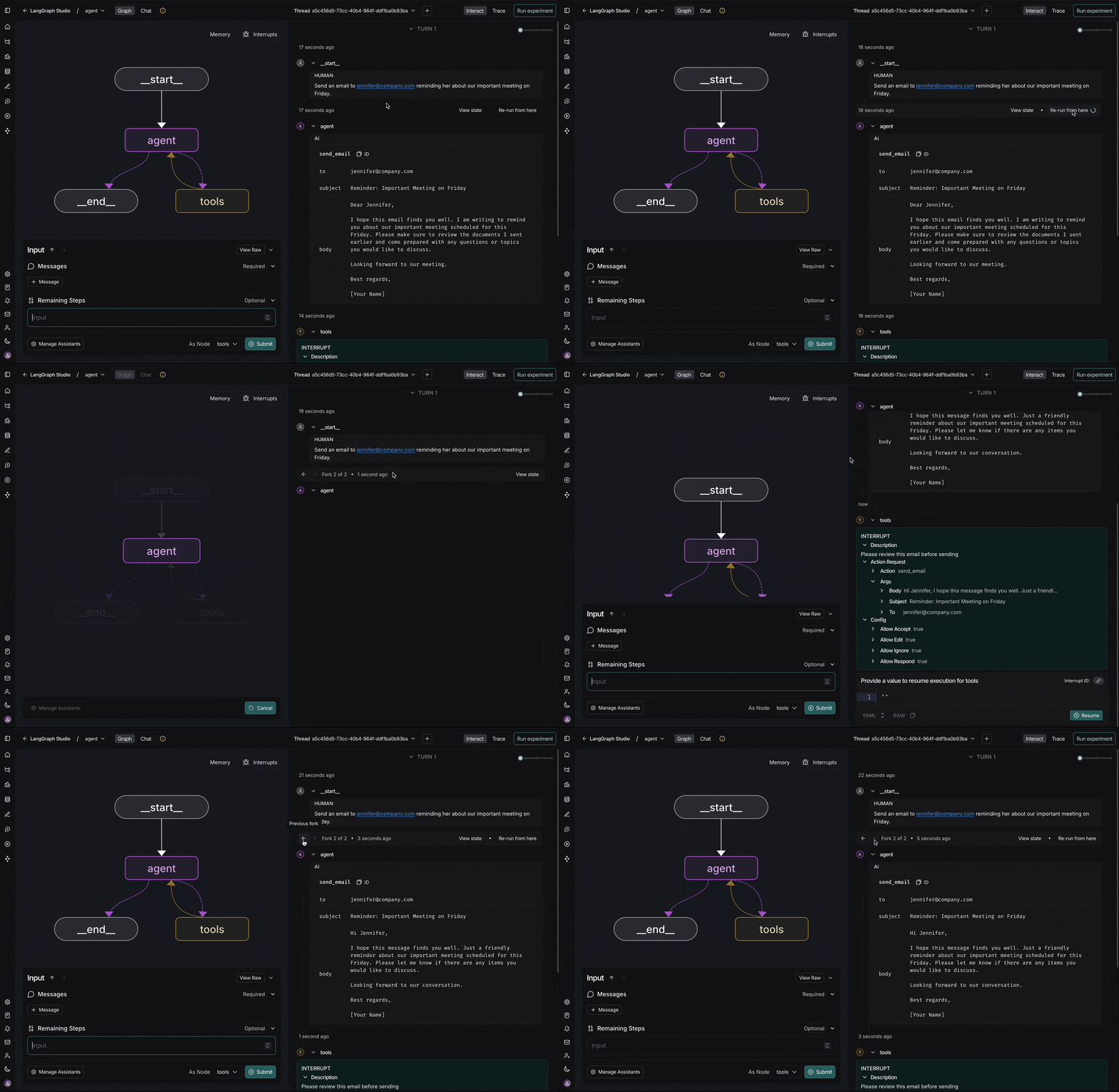
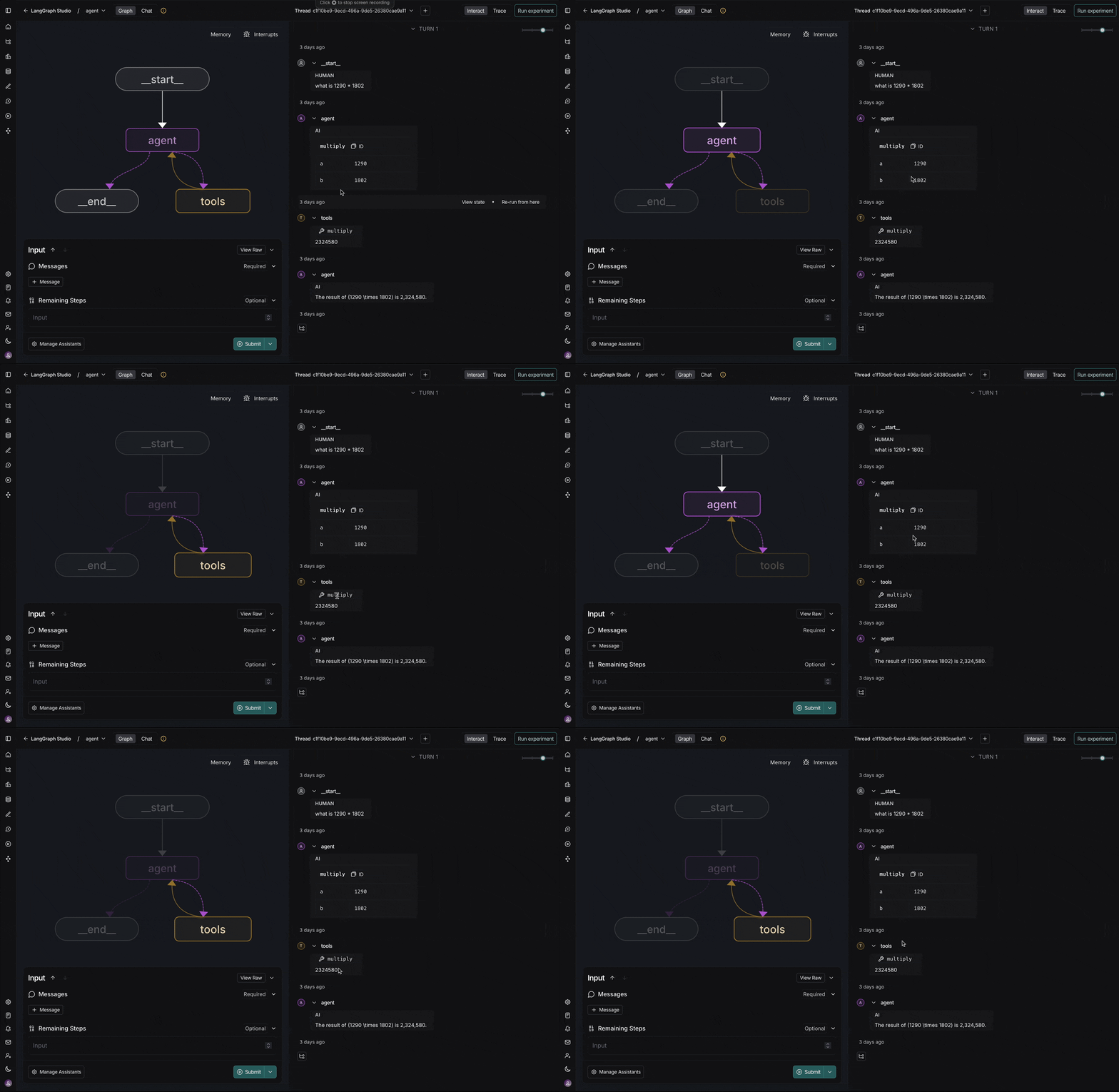 在会话历史中导航,并从任意节点分叉
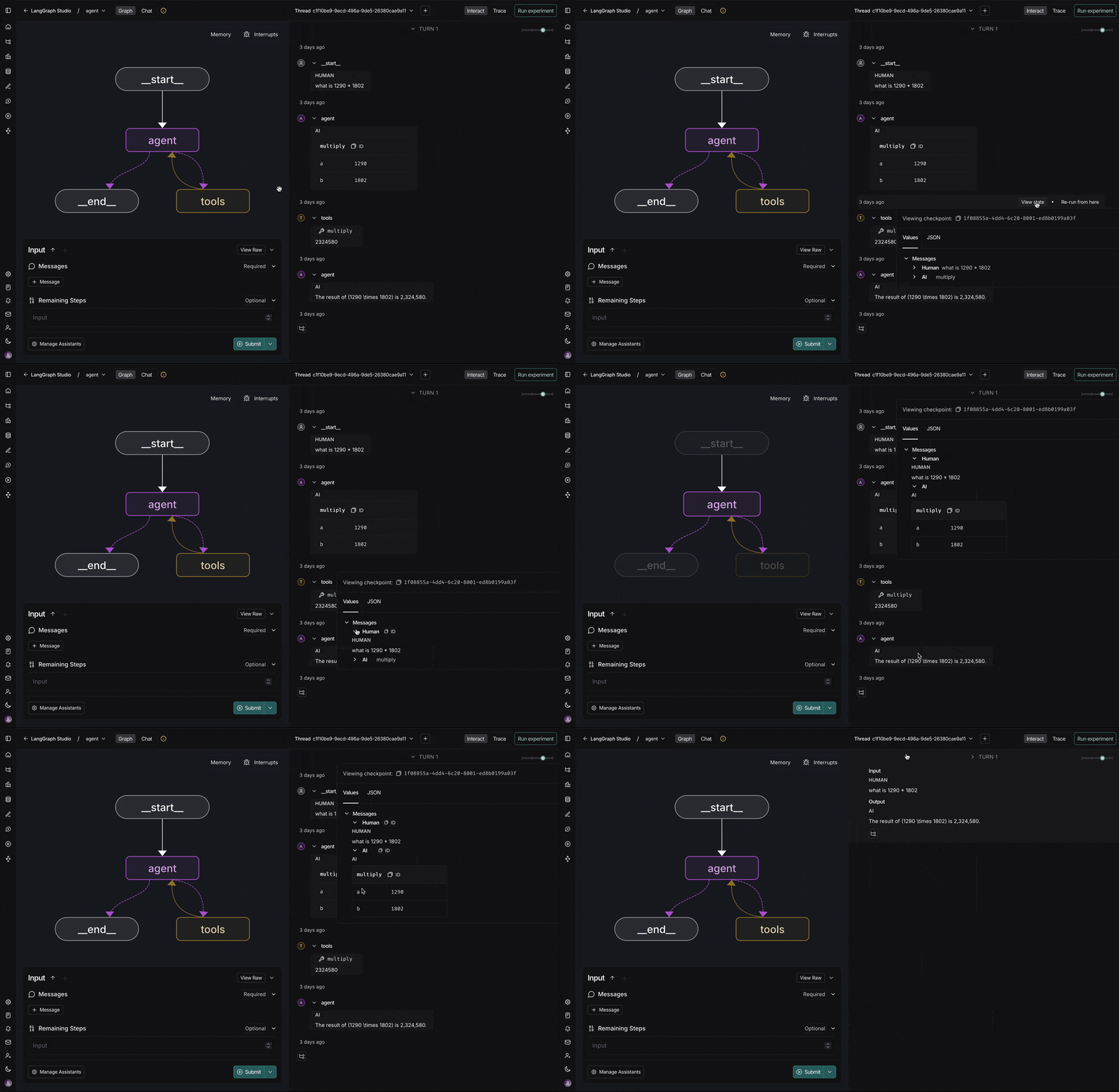
 在执行过程中的任意时刻查看和修改智能体状态
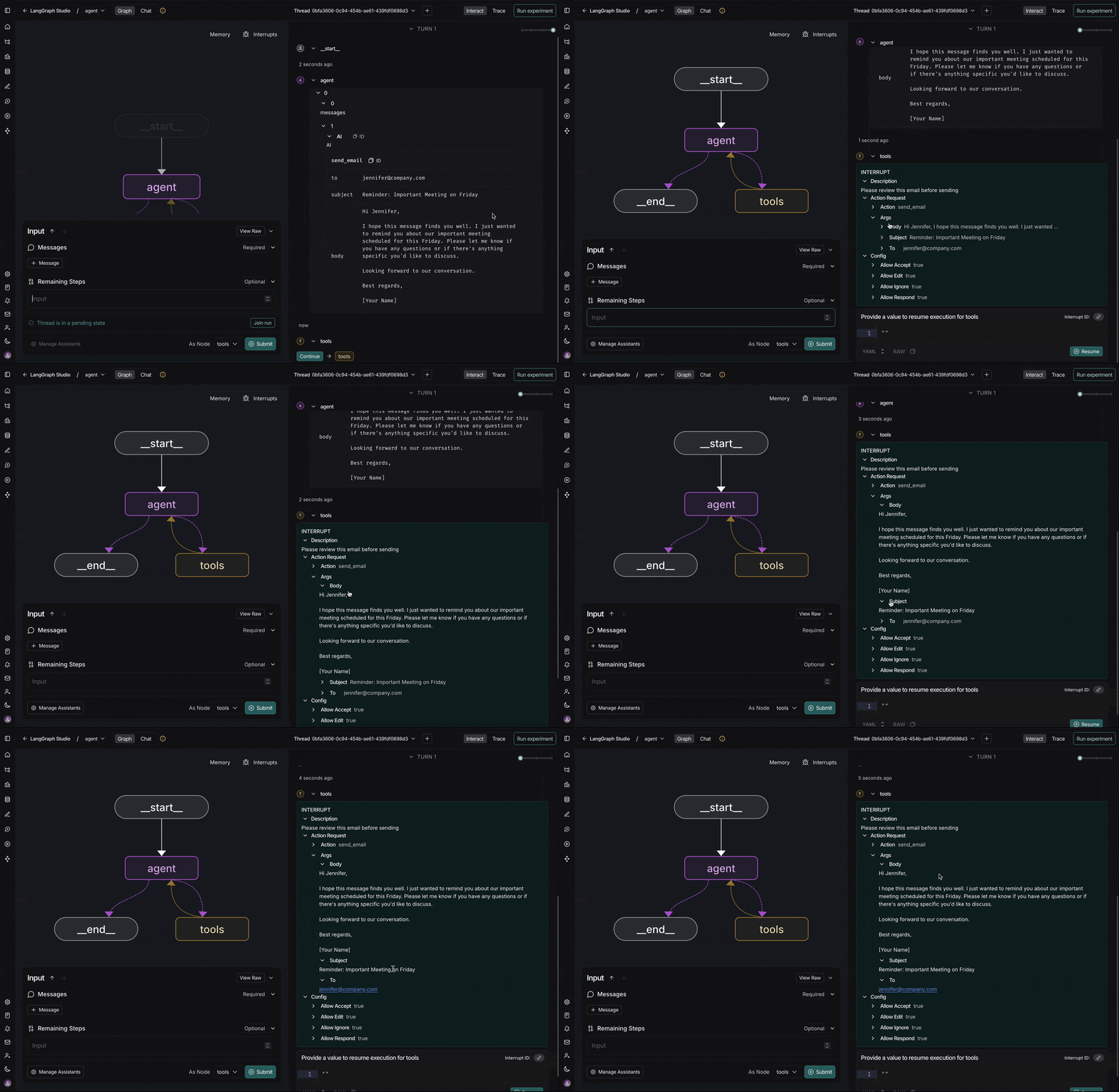
 内置支持审阅并响应智能体请求
 ### 快速开始
最快的入门方式是使用托管版本:
1. 访问 [Agent Chat UI](https://agentchat.vercel.app)
2. 通过输入你的部署 URL 或本地服务器地址来连接你的智能体
3. 开始聊天——UI 会自动检测并渲染工具调用和中断
### 本地开发
如需自定义或本地开发,你可以在本地运行 Agent Chat UI:
```bash 使用 npx theme={null}
# 创建一个新的 Agent Chat UI 项目
npx create-agent-chat-app my-chat-ui
cd my-chat-ui
# 安装依赖并启动
pnpm install
pnpm dev
```
````bash 克隆仓库 theme={null}
```bash
# 克隆仓库
git clone https://github.com/langchain-ai/agent-chat-ui.git
cd agent-chat-ui
# 安装依赖并启动
pnpm install
pnpm dev
````
### 连接到你的智能体
Agent Chat UI 既可连接[本地](/oss/python/langchain/studio#setup-local-langgraph-server)也可连接[已部署的智能体](/oss/python/langchain/deploy)。
启动 Agent Chat UI 后,你需要将其配置为连接到你的智能体:
1. **Graph ID**: 输入你的图名称(在 `langgraph.json` 文件的 `graphs` 下找到)
2. **Deployment URL**: 你的 LangGraph 服务器端点(例如,本地开发为 `http://localhost:2024`,或使用你已部署智能体的 URL)
3. **LangSmith API key (optional)**: 添加你的 LangSmith API key(如果使用本地 LangGraph 服务器则不需要)
配置完成后,Agent Chat UI 会自动获取并显示来自你的智能体的任何被中断的线程。
Agent Chat UI 开箱即用地支持渲染工具调用和工具结果消息。若需自定义要显示的消息,请参阅 [在聊天中隐藏消息](https://github.com/langchain-ai/agent-chat-ui?tab=readme-ov-file#hiding-messages-in-the-chat)。
### 快速开始
最快的入门方式是使用托管版本:
1. 访问 [Agent Chat UI](https://agentchat.vercel.app)
2. 通过输入你的部署 URL 或本地服务器地址来连接你的智能体
3. 开始聊天——UI 会自动检测并渲染工具调用和中断
### 本地开发
如需自定义或本地开发,你可以在本地运行 Agent Chat UI:
```bash 使用 npx theme={null}
# 创建一个新的 Agent Chat UI 项目
npx create-agent-chat-app my-chat-ui
cd my-chat-ui
# 安装依赖并启动
pnpm install
pnpm dev
```
````bash 克隆仓库 theme={null}
```bash
# 克隆仓库
git clone https://github.com/langchain-ai/agent-chat-ui.git
cd agent-chat-ui
# 安装依赖并启动
pnpm install
pnpm dev
````
### 连接到你的智能体
Agent Chat UI 既可连接[本地](/oss/python/langchain/studio#setup-local-langgraph-server)也可连接[已部署的智能体](/oss/python/langchain/deploy)。
启动 Agent Chat UI 后,你需要将其配置为连接到你的智能体:
1. **Graph ID**: 输入你的图名称(在 `langgraph.json` 文件的 `graphs` 下找到)
2. **Deployment URL**: 你的 LangGraph 服务器端点(例如,本地开发为 `http://localhost:2024`,或使用你已部署智能体的 URL)
3. **LangSmith API key (optional)**: 添加你的 LangSmith API key(如果使用本地 LangGraph 服务器则不需要)
配置完成后,Agent Chat UI 会自动获取并显示来自你的智能体的任何被中断的线程。
Agent Chat UI 开箱即用地支持渲染工具调用和工具结果消息。若需自定义要显示的消息,请参阅 [在聊天中隐藏消息](https://github.com/langchain-ai/agent-chat-ui?tab=readme-ov-file#hiding-messages-in-the-chat)。